Opening a café
Café Equipment and Software Checklist for Opening Day
Café equipment checklist for opening day: POS terminal, printers, E-Kassa fiscal device, network, UPS and software, together with a week-by-week setup plan.
UniPOS9 min read
When a café is being prepared for opening, most attention goes to the interior, the menu and the espresso machine. What interrupts service on opening day, however, is usually a technical issue: the kitchen printer does not print, the register stops working when the internet connection drops, the fiscal device has not been registered in time, or a waiter's phone cannot connect to the network. Careful planning prevents nearly all of these problems.
This checklist covers the technical side of opening a café: the counter, the fiscal device, the floor, the network and the software. It reflects conditions in Azerbaijan, where fiscal receipts are issued through E-Kassa, payments are made in AZN and waiters often take orders on phones. It does not name brands or prices. It sets out the required categories of equipment and the criteria for selecting them.
Contents
Essential and optional equipment
"Essential" means the café cannot operate legally or properly without the item. "Optional" depends on the format and volume of the business. For example, a counter-service café does not require waiter phones, although a customer display may be useful.
| Item | Purpose | Status |
|---|---|---|
| POS terminal (Windows touchscreen PC or a POS unit with built-in PC) | Orders, payments, receipts, shifts | Essential |
| Receipt printer (thermal) | Guest bills and receipts | Essential |
| Kitchen and bar printers (thermal, USB/COM/LAN) | Sending orders to preparation stations | Essential (or KDS) |
| Cash drawer | Secure storage of cash | Essential if cash is accepted |
| Fiscal cash register (via an E-Kassa provider) | Issuing fiscal receipts | Essential |
| Bank card terminal | Card and contactless payments | Practically essential |
| Phones or tablets for waiters | Taking orders at the table | Essential with table service |
| Barcode scanner | Selling packaged goods | Optional |
| Kitchen display (KDS) | Instead of or alongside printers | Optional |
| Customer display | Showing the order to the guest | Optional |
| Router, stable internet, LAN cabling | Device connectivity and data exchange | Essential |
| UPS | Continuity of operations during power cuts | Essential |
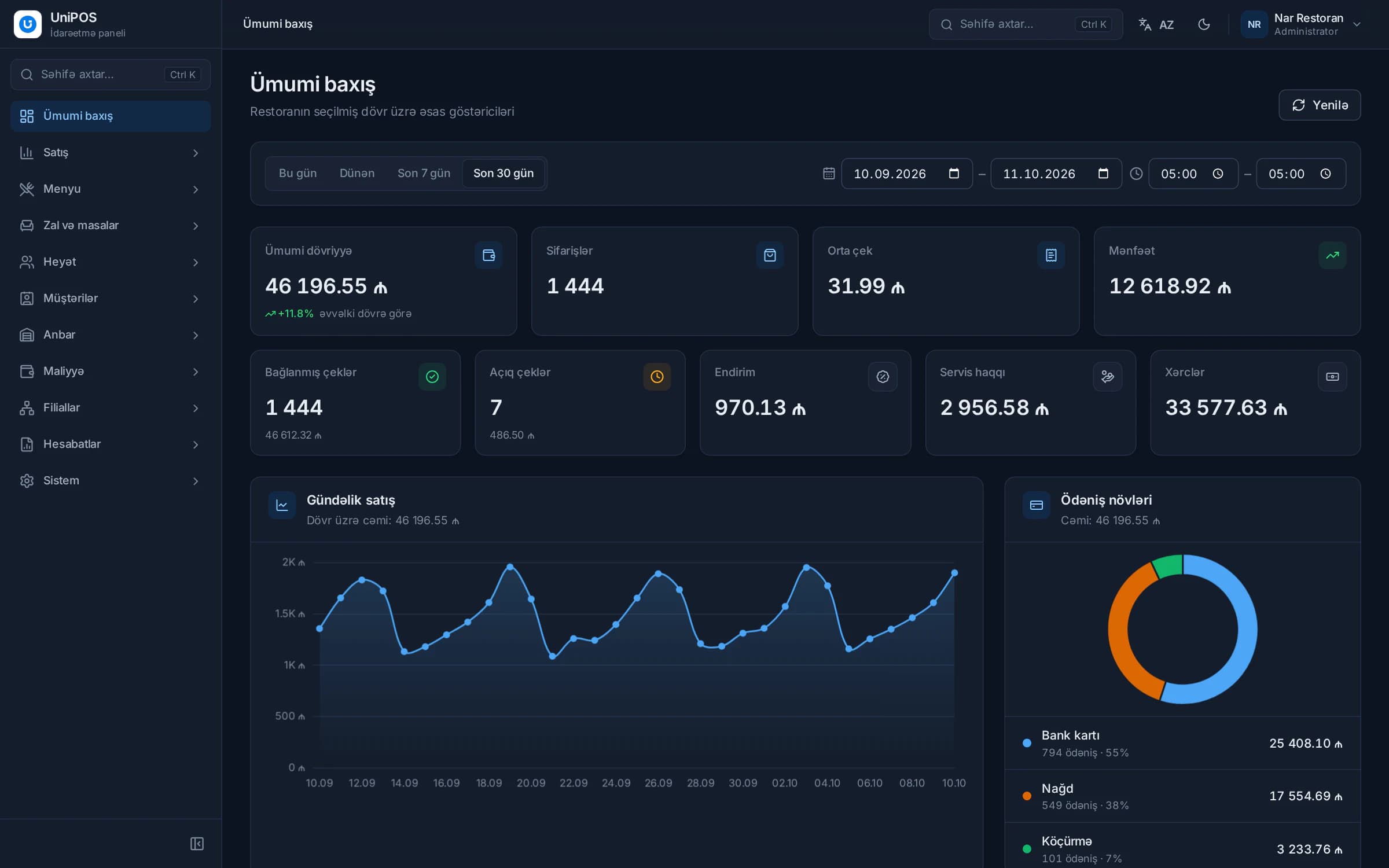
| POS software, back office, inventory | Sales, reports, food cost | Essential |
| QR menu and owner mobile app | Menu for guests, remote oversight | Recommended |
Counter equipment
POS terminal
The register is the central point of the café. Every order, payment and shift report passes through it. There are two common options: a standard Windows PC with a touchscreen, or a dedicated POS unit in which the screen and computer share one housing. A single unit takes up less counter space and is better protected from dust. A separate PC is easier to repair or replace.
When selecting a terminal, check for an SSD, sufficient USB ports, a LAN port and a COM port if older printers will be used. The touchscreen must respond reliably to wet or greasy fingers. Confirm which operating system the software requires before purchasing. Selecting the software first and then buying compatible hardware is consistently more cost-effective.
Receipt printer
Cafés typically use an 80 mm thermal printer. It requires no ink, prints quickly and cuts the paper automatically. Guest bills and internal receipts are printed here. Purchase a supply of spare thermal rolls before opening, as running out of paper is one of the most frequent issues in the first weeks.
Kitchen and bar printers
Assign a dedicated printer to each preparation station: hot kitchen, cold preparation, bar and coffee station. A latte entered at the counter is then printed at the bar, and a sandwich in the kitchen. Printers connect via USB, COM or LAN. For stations located far from the register, a LAN printer with a fixed IP address is the most practical configuration.
Thermal paper darkens when exposed to heat. The kitchen printer should not be installed directly next to the oven, the grill or the steam wand.
Cash drawer
If the café accepts cash, a cash drawer is required under the register. Many models connect to the receipt printer and open automatically when a receipt is printed. Verify that the connector is compatible with your printer before purchasing.
Barcode scanner
If the café sells bottled water, juice, packaged desserts or retail coffee beans, a scanner removes the need for the cashier to search for items manually. The simplest option is a USB scanner that operates as a keyboard. A café that sells only made-to-order drinks can postpone this purchase.
Fiscal register and card payments
In Azerbaijan, every guest must receive a fiscal receipt. It is printed by a fiscal cash register that operates within the E-Kassa system. The device is purchased and registered through one of the provider companies. Registration may take some time, so the process should begin several weeks before opening.
The key question is whether the fiscal device integrates with your POS software. Without integration, the cashier must enter every sale twice, first in the POS and then on the device. This costs time and leads to discrepancies at the end of the shift. Further details are available on our E-Kassa integration page.
The card terminal is provided by a bank under contract. Compare several banks on fees, settlement times and contactless support. Some fiscal configurations link card payments directly to the fiscal device, so the cashier does not need to enter the amount twice. This should be clarified with your provider.
Devices for the floor and kitchen
Waiter phones or tablets
With table service, sending waiters back to the register for every order costs time and increases errors. An order entered on a phone is transmitted directly to the kitchen and bar. Use devices owned by the café rather than staff phones: the app then runs the same version on every device, and the device remains at the café when an employee leaves. Choose devices with long battery life, use protective cases and ensure that Wi-Fi covers the entire floor, including the terrace.
Kitchen display (KDS)
A KDS replaces paper tickets with a screen. The cook marks items as ready, and delayed orders are immediately visible. There are no paper costs and no lost tickets. The screen does, however, need to be mounted in a location protected from heat and moisture. Printers are usually sufficient for a small café, while kitchens with high order volumes benefit more from a screen. More information is available on our kitchen display page.
Customer display
For counter service and takeaway, a second screen facing the guest confirms that the order has been entered correctly. With full table service it is an optional addition.
If staff are to sign in with a card instead of a PIN, add an RFID/NFC card reader to the list.
Network, internet, UPS and offline operation
The network is the least visible part of a café and the most critical when it fails. The following practical guidelines apply:
- Install cabling during renovation. LAN connections for the register, printers and kitchen screen should be planned before the walls are closed.
- Use cables for fixed devices and Wi-Fi for mobile ones. Connect the register and printers by cable wherever possible, and reserve Wi-Fi for waiter phones.
- Provide a separate guest Wi-Fi network. Guest internet usage should not affect the performance of the register.
- Assign fixed IP addresses to printers. If a printer's address changes after a router restart, kitchen tickets may stop arriving without anyone noticing in time.
- Plan a backup connection. A second provider or a mobile modem maintains operations during longer outages.
- Install a UPS. Connect the register PC, router and main printer to it, so that a short power cut does not interrupt a payment or cause data loss.
Offline operation deserves particular attention. Internet outages also occur in Baku and often coincide with the busiest hours. A cloud-only system may stop the register when the connection is lost. In a system designed for offline operation, data is stored on the POS computer at the venue: orders are opened, sent to the kitchen and closed as usual, and the data is sent to the server automatically once the connection returns. Verify this during a demo by disconnecting the internet and then opening, printing and closing an order. Ask your fiscal provider separately how the device operates offline.
The five software components
A complete software setup usually consists of five components:
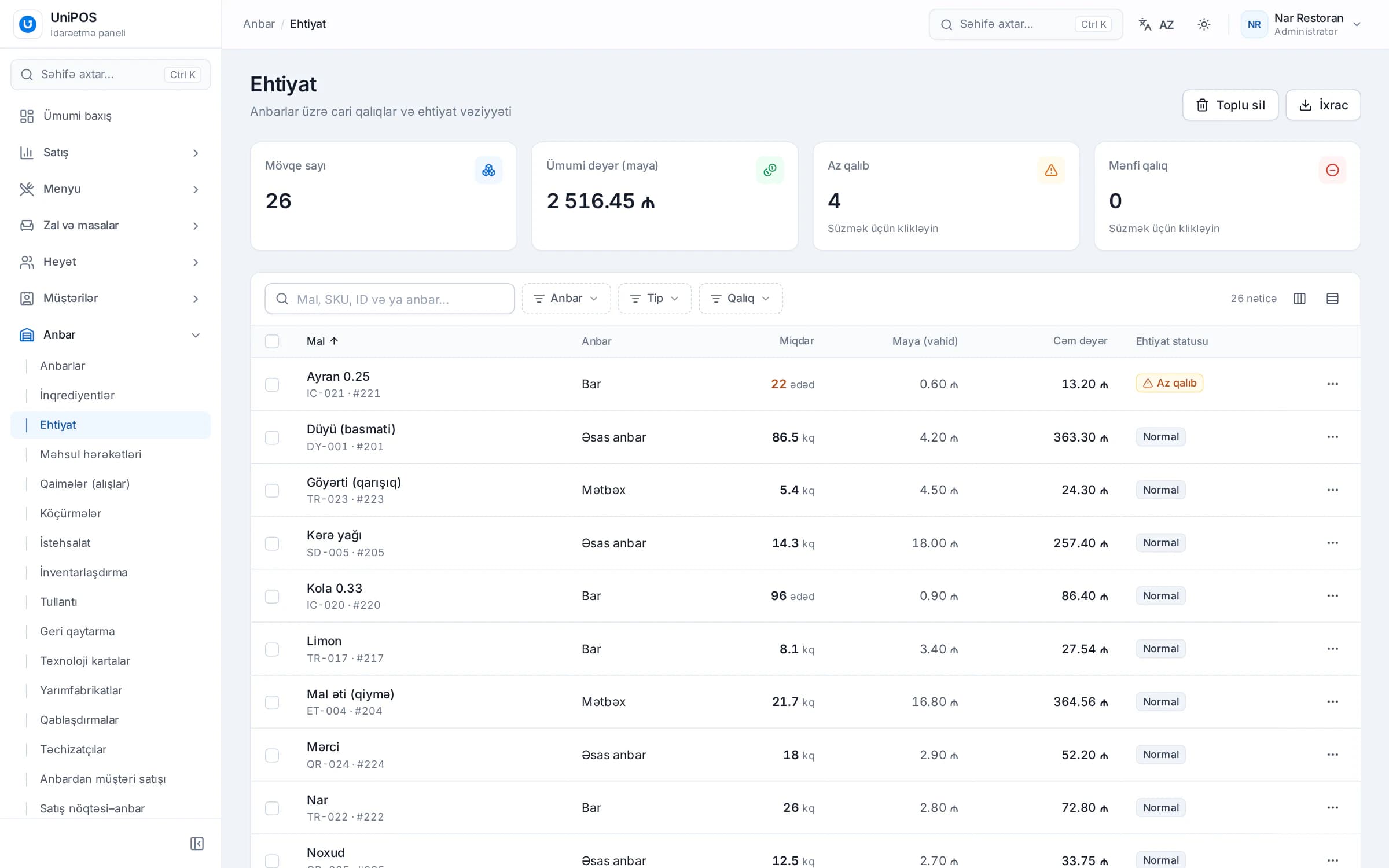
Recipes (tech cards) are particularly important in a café. A latte requires more than espresso and milk: the cup, lid, sugar and sometimes syrup are also consumed. Without recipes in the system, the actual food cost and margin remain unknown, and inventory is managed by estimation. This topic is covered in detail in our article on inventory and food cost.
Avoid assembling these five components from different vendors. Every connection between separate programs creates another point of failure: the menu has to be updated in several places, reports have to be combined manually, and it becomes unclear which figures are correct.
Staff permissions also require attention. In a café, the cashier, barista and waiter often share one terminal. Define in advance who may apply discounts, delete a check or change a price. When every deletion is recorded with a reason and an operation history, cash discrepancies at the end of the shift are considerably easier to explain.
Week-by-week setup plan
The following plan is indicative. Actual timing depends on your providers and the progress of the renovation.
- 5-6 weeks before opening. Select the POS software and attend a demo. Apply to a fiscal provider and to a bank for a card terminal, and order the internet line.
- During renovation. Determine the positions of the register, printers and kitchen screen. Install LAN cabling and power outlets accordingly.
- 3 weeks before. Purchase the hardware. Enter the menu, categories, modifiers (milk type, syrup, size) and prices, and prepare the recipes.
- 2 weeks before. Install terminals and printers, assign categories to printers and run test prints. Connect the fiscal device to the POS and verify it with a test sale.
- 1 week before. Add staff, PINs and permissions. Enter opening stock and print QR codes for the tables.
- 2-3 days before. Hold a trial day with invited guests. Process real orders, open and close a shift, run a test without internet and produce an end-of-day report.
- Opening day. Open the shift, keep spare paper rolls within reach and place the support number next to the register.
Five commonly overlooked items: spare thermal paper, fixed IP addresses for printers, a heat-protected location for the kitchen printer, a separate guest Wi-Fi network and a UPS for the register PC. Checking these five items in advance contributes significantly to a stable opening day.
Implementation in UniPOS
UniPOS covers the software side of this checklist in a single system. You select hardware to suit your café, and UniPOS ensures that all components work together:
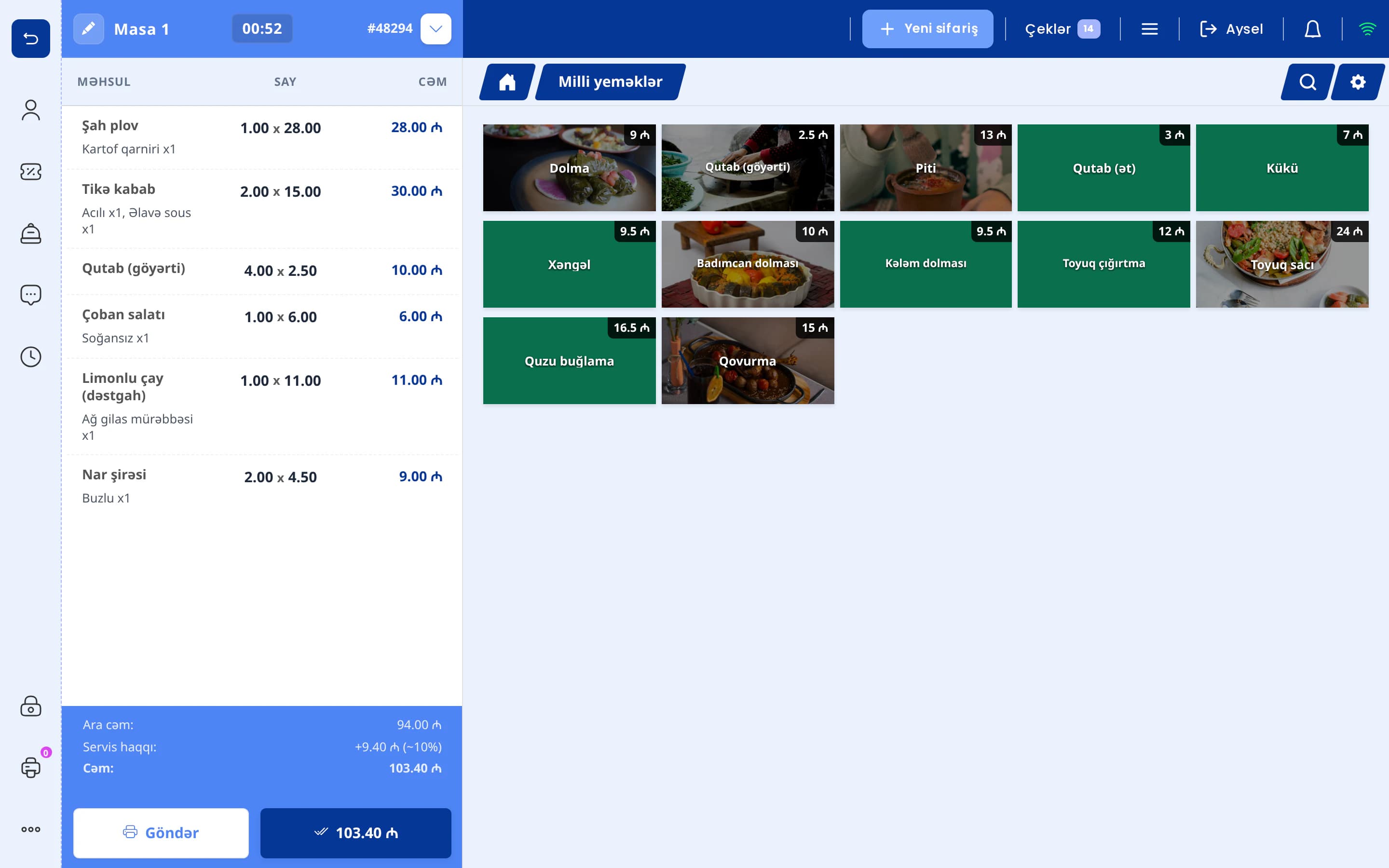
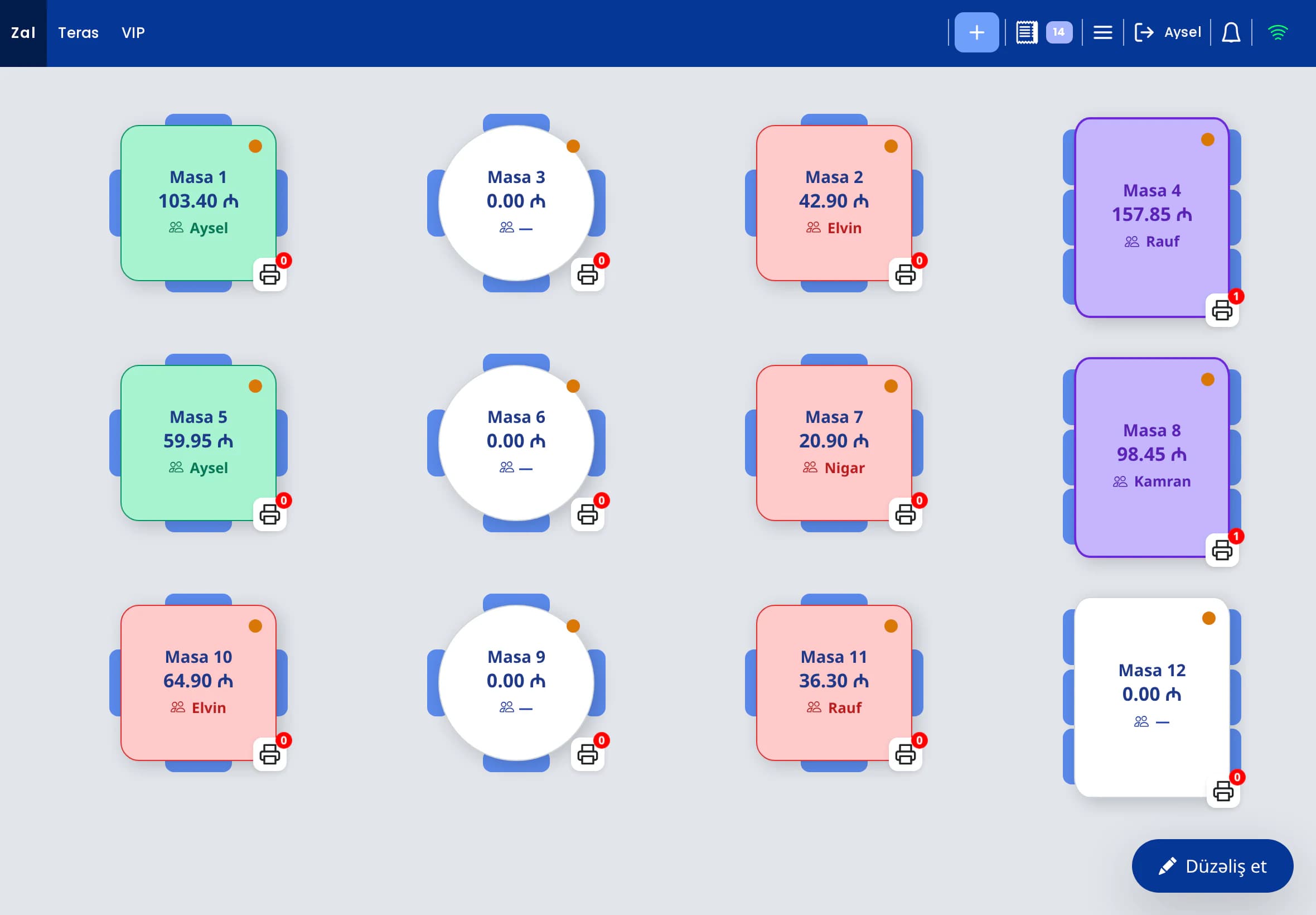
- The POS runs on Windows. One master terminal, additional (slave) terminals and phones are synchronised in real time over the restaurant network (LAN).
- The waiter app provides the same POS interface on Android and iOS phones and tablets and connects to the main terminal over the restaurant network. See the waiter app.
- Printers connect via USB, COM or LAN. Kitchen tickets are routed by category or product, bills are printed as well, and the master terminal can manage printing centrally.
- KDS opens on any screen. Orders waiting longer than 15 minutes are shown on a separate tab. A customer display mode is also available for the counter.
- Offline operation. Data is stored on the POS computer at the venue and sent to the server in the background when the internet is available. The number of pending operations is shown at the register.
- E-Kassa integration with Omnitech, Sunmi/Caspos, OneClick/Vizar, DataPay and AzSmart/SmartOne. Sales, refunds, X reports and shift opening and closing are performed from the register.
- Barcodes: EAN-13, UPC-A and EAN-8, with barcode printing from the back office.
- QR menu in Azerbaijani. Guests order using the QR code on their table. The order is added directly to that table's check or arrives in the POS as a notification for staff to accept. Payment is taken at the café.
- Back office in the browser: inventory, recipes, food cost, profit and sales reports.
- UniPOS Manager (Android) gives the owner reports, push notifications and stop-list management on a mobile device.
The full feature set for cafés is described on the UniPOS for cafés page.
Technical planning for your café
During a demo we will review your hardware list, printer layout and E-Kassa provider together. Phone or WhatsApp: +994 77 501 25 07.
Book a demo