QR menu
QR Menu for Restaurants: Benefits and Setup in 2026
What a QR menu brings a restaurant: price updates without reprinting, faster peak-hour service, ordering via the table QR code, design tips and common mistakes.
UniPOS9 min read
QR codes on café and restaurant tables in Baku are now commonplace. A guest scans the code with a phone camera, and the menu opens with photos and prices. However, the value a QR menu brings to a restaurant depends on how it is set up. In some venues it is simply a PDF copy of the printed menu that is difficult to read on a phone. In others, guests send their order using the table's QR code, and the order goes directly to the POS.
This difference has a significant effect on daily operations. We recommend first deciding which type of QR menu suits your business, and only then turning to design and code placement.
Contents
Two types of QR menu
A QR menu is the web version of your venue's menu. A guest scans the QR code with a phone camera, and the menu opens in the browser. No app needs to be installed. This matters more than it may seem: most guests are not willing to install a new app in order to order a cup of coffee.
In practice, two types of QR menu are in use:
- View-only menu. Guests see dishes, prices and photos, and place their order with a waiter as before. This format replaces the printed menu and is a sensible first step. A view-only code can be placed on the table, at the counter or at the entrance.
- Menu with table ordering. Guests select dishes, choose modifiers (doneness, sauce, extra cheese) and send the order from their phone. Orders can be sent only through the table's own QR code, and they go straight to the POS. Waiters spend their time on service and recommendations rather than on writing down orders.
The right choice depends on your concept. In fine dining, conversation with the guest is part of the service, and a view-only menu is often sufficient. In cafés, fast food outlets, lounges and large dining rooms, table ordering saves considerable time during peak hours. In a small family café where the waiter knows the regular guests personally, there is no need to enable table ordering right away. It is advisable to start with a view-only menu and observe how guests respond.
| Criteria | View-only | Table ordering |
|---|---|---|
| Price and menu updates | Immediate | Immediate |
| Who takes the order | Waiter | The guest sends it via the table's QR code; it is written to the table's check or confirmed by staff |
| Link to the POS | Not essential | The order arrives in the POS |
| Best fit | Fine dining, small dining rooms | Cafés, fast food, lounges, large dining rooms |
What a QR menu brings a restaurant
1. Prices change without reprinting
A printed menu begins to go out of date on the day it is printed. A supplier raises the price of meat, a seasonal soup is added, some items run out. Each time, the menu has to be reprinted or prices corrected by hand. With a QR menu, the price is changed in the back office and guests see the new price immediately. Printing costs disappear, and there is no mismatch between the menu price and the price on the bill. When food costs rise, adjusting the price the same week is the simplest way to protect your margin.
2. Photos and descriptions support sales
Guests hesitate to order a dish they do not recognise. A good photo and a two-line description (ingredients, portion size, spice level) remove that hesitation. On a printed menu, a photo for every item is costly and takes up space. On a phone screen, it is standard practice. Desserts, drinks and signature dishes benefit the most. A dessert the guest had not planned to order is often chosen after seeing its photo.
3. Faster service at peak hours
Friday, 8 p.m. The dining room is full, and the waiters cannot reach every table in time. The guest first waits for a menu, then for a waiter to take the order. These delays affect the guest's impression of the whole evening. With a QR menu, the guest opens the menu as soon as they sit down. If table ordering is enabled, they send the order themselves through the table's QR code. Meanwhile, the waiter serves dishes, prepares tables and attends to guests. As a result, the same team serves more tables.
4. Fewer order errors
Errors in verbal orders usually occur at two stages. The waiter mishears the order in a noisy room, or later enters it into the POS incorrectly. When guests make their own selection and the order is transmitted directly to the POS, both stages are eliminated. Notes such as "no onions" or "medium" reach the kitchen in writing. The number of returned and voided dishes falls, and so do the associated losses.
5. Guest feedback reaches you first
A dissatisfied guest often leaves without saying anything and later posts a negative review on a maps service. When the QR menu offers star ratings, you see the feedback first and can resolve the issue in time. Positive reviews are also useful: they show which dishes guests appreciate, in the guests' own words.
6. Wi-Fi, opening hours and map on one page
The Wi-Fi password is one of the questions waiters hear most often during a shift. The QR menu info page shows Wi-Fi details, address, phone number, opening hours, map and social media links. Guests find the information themselves. We also recommend stating the service charge clearly on this page. This reduces questions about the amount when the bill is presented.
7. New staff become productive sooner
Staff turnover in restaurants is high. A new waiter needs several weeks to learn the full menu, ingredients and prices. When the menu includes photos, ingredients and allergen notes, guests can find the essential information themselves. New employees are not required to answer every question from their first day. The waiter's advice remains important, but the workload in the first weeks is lower.
Key point: the value of a QR menu rests on three factors. The menu is always up to date, guests choose faster, and orders reach the POS without being lost. The other benefits follow from these three.
How table ordering works
The process is straightforward, but each step must be configured correctly.
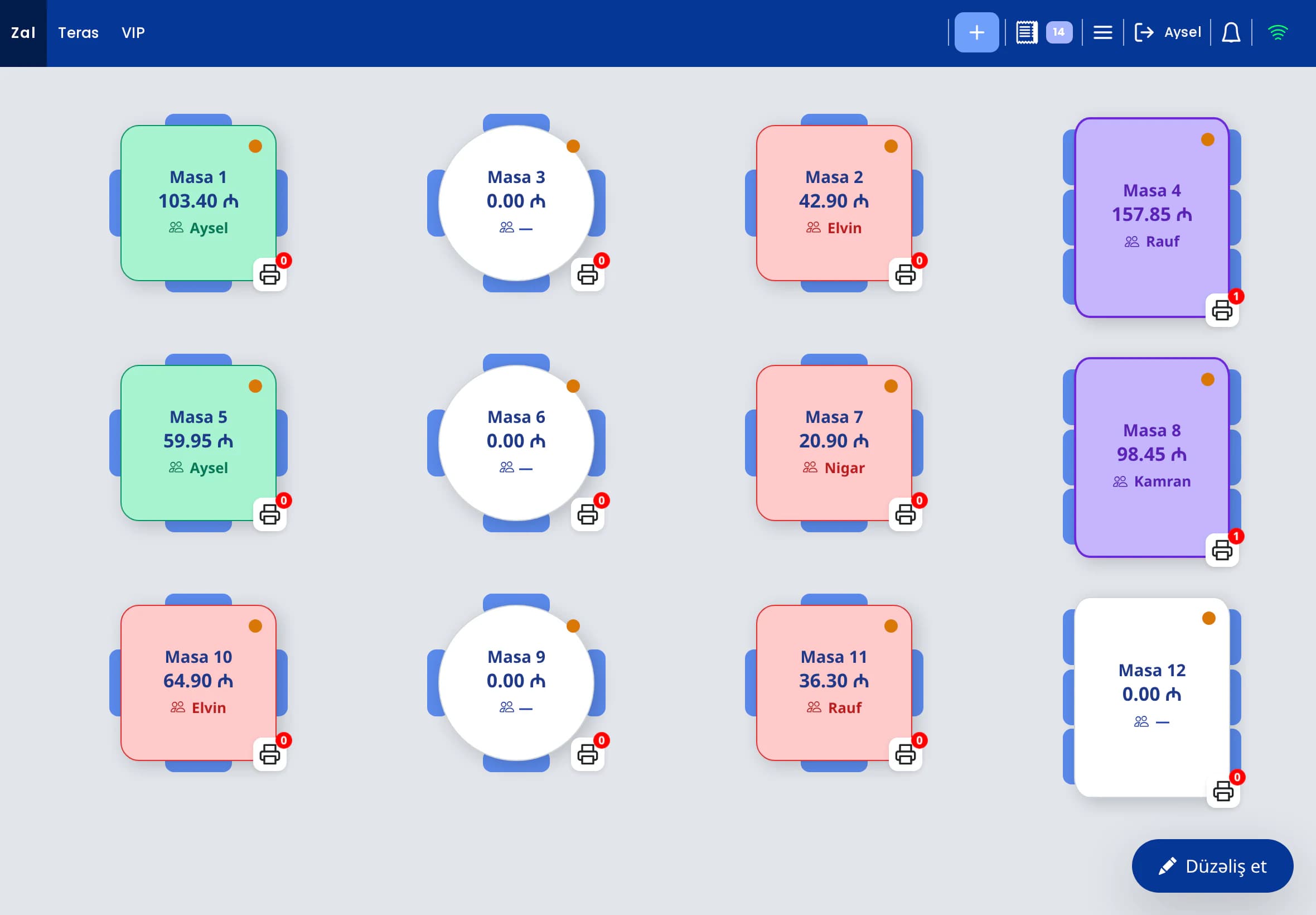
- The guest scans the table's QR code. Each table has its own QR code, and orders can be sent only through it. The system identifies the table the order comes from, so the guest does not enter a table number.
- The guest selects dishes and modifiers. For a burger, this may be doneness, sauce and extra cheese. If a required choice (a side dish, for example) has not been made, the item is not added to the cart. Prices are always taken from the POS, and guests cannot change them.
- The order arrives in the POS. The venue chooses one of two modes. In the first, the order is written directly to that table's check, and kitchen tickets print automatically. In the second, the order appears in the POS as a notification, and a staff member accepts or rejects it. Approval mode is the more reliable choice for the first months, as accidental or incorrect orders do not reach the kitchen.
- The guest follows the order status. A separate page shows that the order has been sent, has reached the restaurant, and has been accepted or rejected. The page also shows the order total and the check number. This reduces questions such as "Has my order arrived?"
The payment process does not change. There is no online payment in the QR menu; payment is made at the venue, at the POS. The guest asks the waiter for the bill, pays in cash or by card, and the POS issues a fiscal receipt through E-Kassa. Table ordering only speeds up order taking. For more on the POS side, please see our restaurant POS system guide.
One point should be clear from the outset: table ordering does not replace waiters. Guests still expect advice, more water, the bill and attention. Venues that treat QR ordering as a tool that supports the waiter achieve better results. We recommend instructing staff from day one to approach the table and greet the guests when a table order comes in.
Design and QR code placement
QR stickers and table tents
The position and size of the code are as important as the menu design. The main guidelines are as follows:
- Place the code where a seated guest can see it: in the centre of the table, on a table tent or on a sticker near the edge.
- The code should generally be no smaller than 3 x 3 cm. In dimly lit rooms, make it somewhat larger.
- Add a short caption next to the code, such as "Scan to view the menu and order." Guests should understand its purpose at first glance.
- Each table should carry only the code linked to that table. If codes are mixed up between tables, an order may be written to the wrong table's check.
- Glossy lamination reflects ceiling lights and makes scanning harder. Choose a matte finish.
- Check the condition of the stickers every week. Replace any scratched, soiled or peeling codes the same day.
Testing on several devices
Before launch, open the menu on an older Android device, a recent iPhone and a phone with a small screen. Scan the code from different distances and from the darkest part of the room. Check how quickly the page loads on mobile data. Ask several employees to complete an order from start to finish: selecting a dish, choosing modifiers and sending the order. Note any steps where they encounter difficulties and correct them.
Pre-launch checklist
- Every product price matches the price in the POS.
- At least the best-selling dishes have a photo and a short description.
- Required modifiers (side dish, doneness) are configured correctly.
- Each table's code is linked to that table, and a test order is written to the correct table's check.
- Wi-Fi details, opening hours and the service charge on the info page are up to date.
- Every waiter and cashier on shift knows how to accept an incoming order.
Common mistakes
- PDF menus. Uploading a scan of the printed menu as a PDF is the most common mistake. The text is small on a phone, guests have to zoom in, and the file loads slowly. Every price change requires a new file. In addition, there is no search, no category navigation and no ordering.
- Outdated prices. The main advantage of a QR menu is that it is always current. An outdated price cancels that advantage. A guest who sees a different amount on the bill loses confidence in the venue. The most reliable approach is to run the QR menu and the POS in the same system: a price is changed in one place and updated everywhere.
- Codes that are hard to scan. A code that is too small, low contrast, a large logo in the centre or a curved surface. When a code fails after several attempts, the guest calls a waiter and the benefit of the QR menu is lost.
- Requiring an app or registration. Every additional step before the menu opens, such as installing an app or registering, discourages some guests.
- Insufficient staff training. If table ordering is enabled, waiters and cashiers need to know how to accept incoming orders. Otherwise, orders remain pending and guests are left waiting.
Measuring the results
Monitor several indicators for 4-8 weeks after launch. Results vary considerably from venue to venue. For this reason, compare them with your own figures before launch rather than with market averages:
| Indicator | What to look for |
|---|---|
| Average check | Do photos increase sales of desserts, drinks and add-ons? |
| Orders at peak hours | Does the same team handle more orders? |
| Errors and voids | Have incorrect orders, deleted items and refunds decreased? |
| Product sales | Has the share of highlighted items grown? |
| Guest reviews | What is the average rating, and which topics recur in comments? |
A separate spreadsheet is not required for this. If the QR menu is connected to your POS, the average check, product reports, deletions and reviews are already available in the back office. Introduce changes one at a time. For example, update the photos first and change the category order two weeks later. This way, you can see precisely which step produced the result.
QR menu capabilities in UniPOS
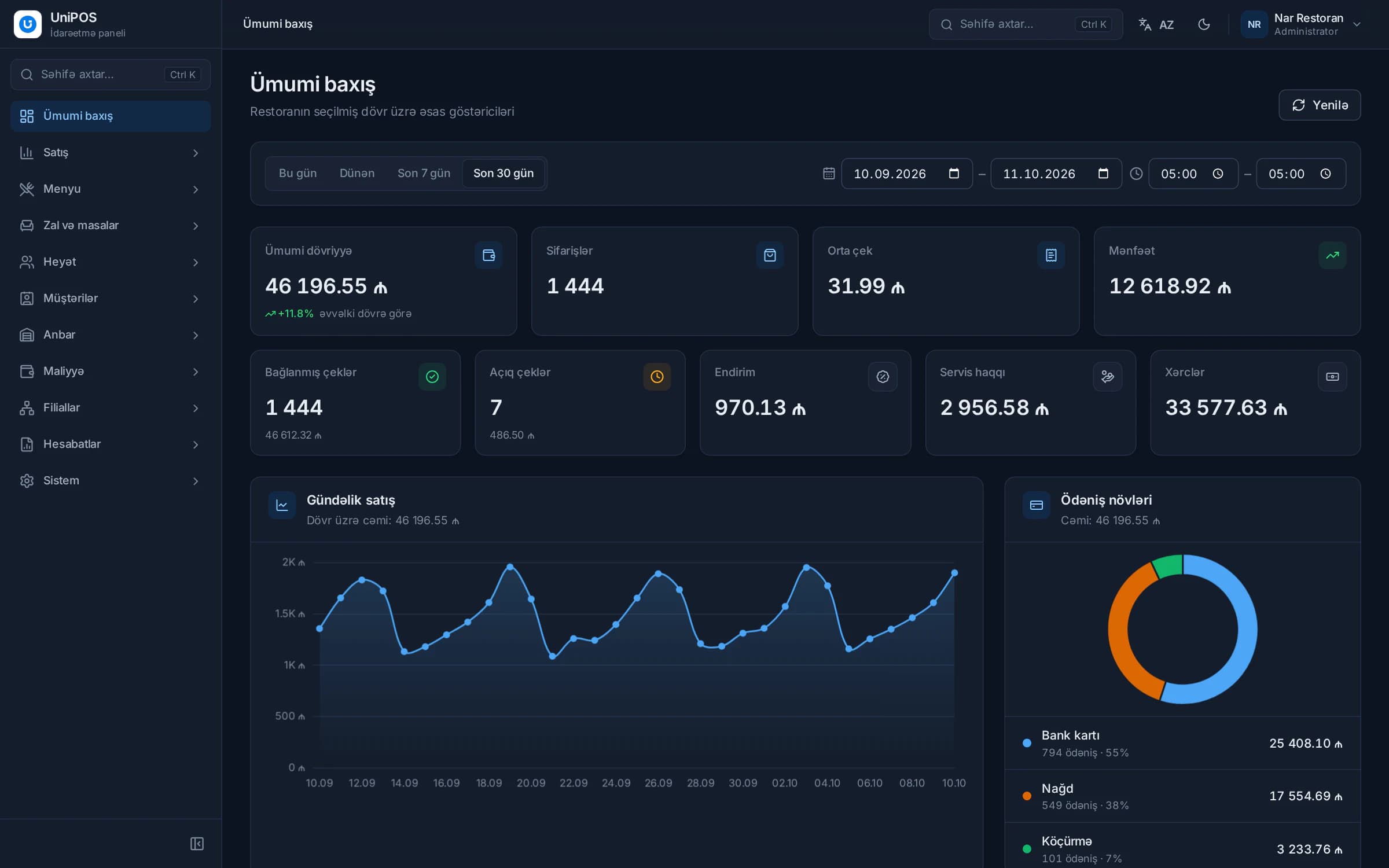
In UniPOS, the QR menu is not a separate service. It is part of a single system together with the POS, the kitchen display and the back office. The main capabilities are:
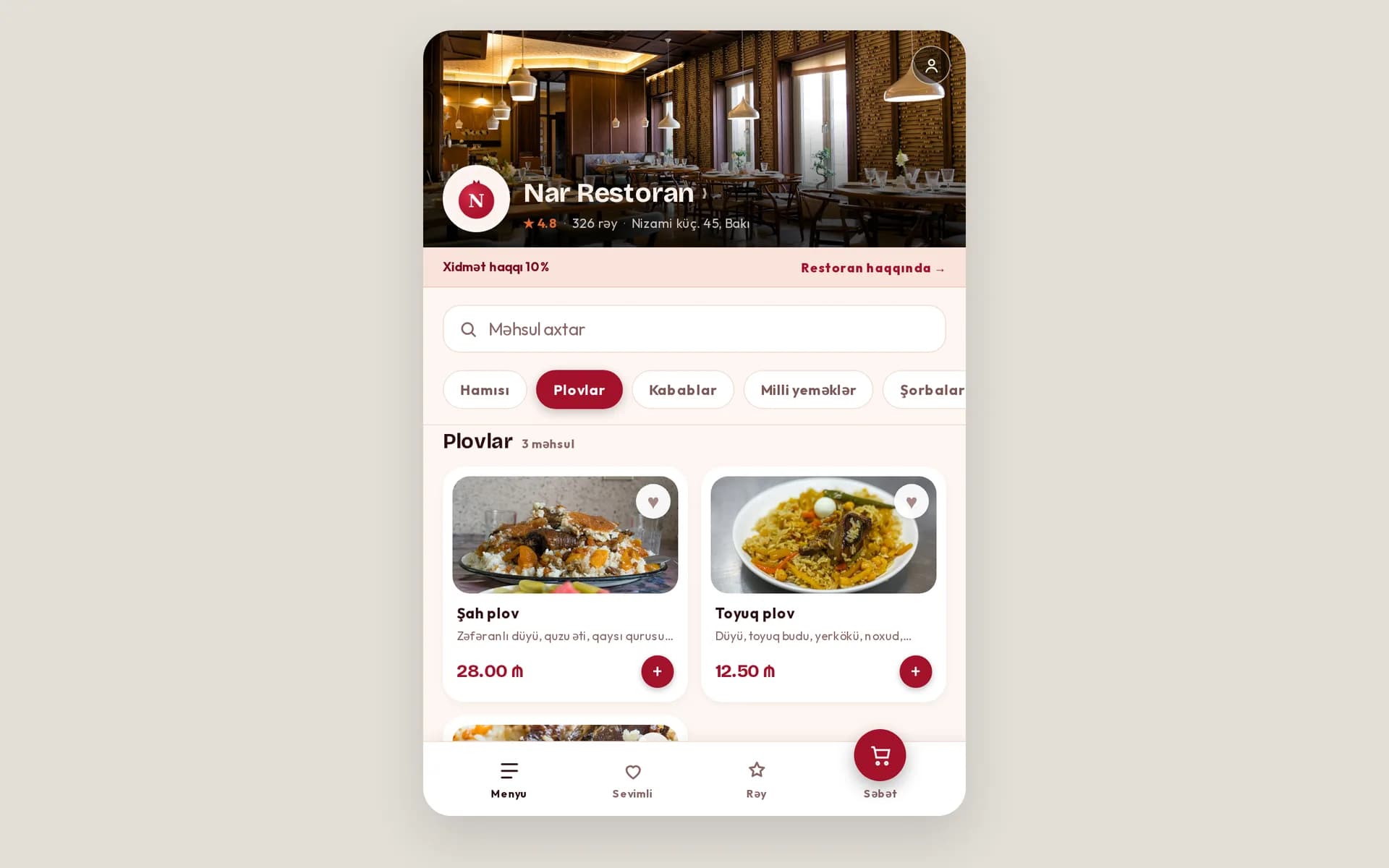
- Restaurant landing page. When the QR code is scanned, the restaurant's page opens first: photo, logo, information about the venue, rating, opening hours and category tiles. It also includes Call, Address, Wi-Fi password copy and Review buttons, social media links and a map.
- Fast updates. When a product, price or category is changed in the back office, the QR menu is updated within about 10 seconds.
- Navigation. Category bar, search, product page, favourites and cart.
- Modifiers. The modifier window follows the same rules as the POS: single and multiple choice, required groups and default options.
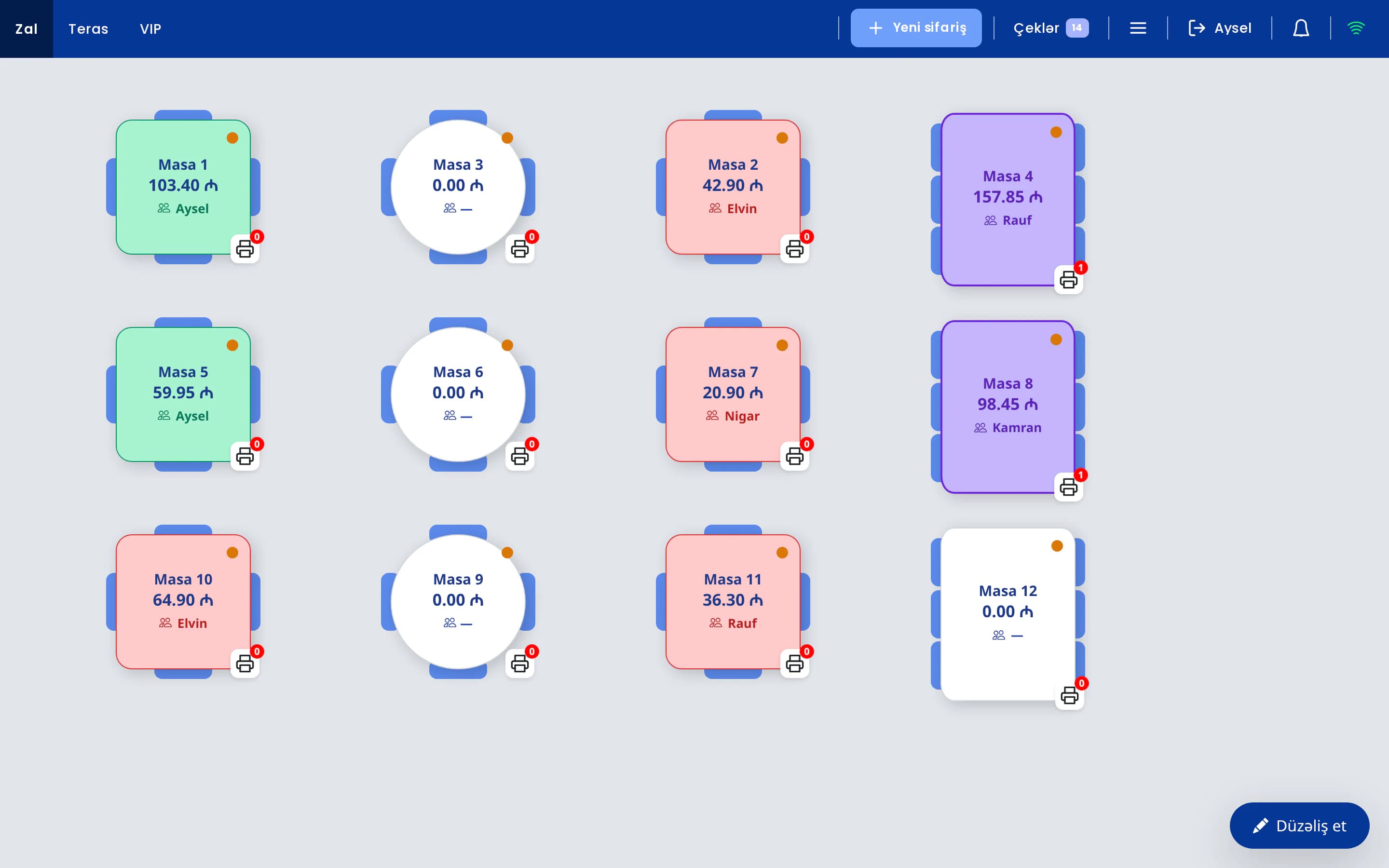
- Table ordering. Orders are sent only through the table's own QR code and arrive in the POS. Depending on the mode the venue selects, the order is either written directly to the table's check with kitchen tickets printed automatically, or it appears in the POS as a notification for staff to accept or reject. Prices are taken from the POS. Guests follow the order on a live status page.
- Payment at the venue. The QR menu does not include online payment. The check is closed at the POS, and the fiscal receipt is issued through E-Kassa.
- Guest accounts and reviews. Guests create an account with their phone number, which is verified with a code sent via WhatsApp. They can leave star ratings and reviews, which appear in the back office.
- Info page. Address, phone number, opening hours, Wi-Fi, map, social media links, service charge and rating.
- Appearance. 13 colour themes and 4 layout styles are available in the back office.
- Search-friendly pages. Menu pages are built to be indexed by search engines. Guests do not need to install anything, and they can use "Add to home screen" to keep the menu on their phone.
The guest interface is currently available in Azerbaijani only. Table orders are processed in the POS like any other order: they are sent to the kitchen printer or the kitchen display, and payment is taken at the POS. The owner can also manage the menu and the stop-list from the UniPOS Manager mobile app. All features are described on the QR menu page.
Your menu in QR format
During a demo, we will show how your menu will look in the UniPOS QR menu and how a table order arrives in the POS.
Request a demo